

The 'Try It!' feature appears on the API reference page for each API operation, allowing you to test the request without leaving this site. This section walks you through using this feature, and it provides an example of testing a Payment Gateway API Sale request as a merchant.
Prerequisites
Merchants:
- Follow the steps in Create a Sandbox Account to sign up and log in to the Qualpay merchant portal.
- See Get Your API Credentials to obtain a sandbox merchant ID and API security key.
Partners:
- Use Create a Sandbox Account to sign up and log in to the Qualpay partner portal.
- See Get Your API Credentials to obtain your vendor ID and vendor API security key. (The vendor ID is also referred to as the integrator ID.)
Perform the tasks below to use the 'Try It!' feature.
1. Select a function
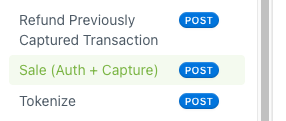
Use the left-hand navigation on this site to navigate to the API request you wish to test.
Example: Sale RequestIn the left-hand navigation, expand 'Payment Gateway' and select 'Sale (Auth + Capture).'
2. Check the base path
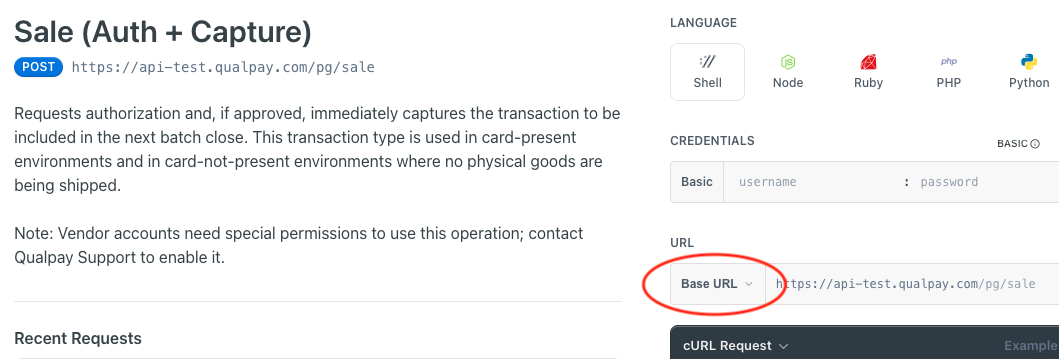
Make sure you are using the Sandbox environment. Under 'URL,' check that the Base URL is https://api-test.qualpay.com. Use the 'Base URL' drop-down menu to select the correct base path, if needed.
Example: Sale RequestSelect
https://api-test.qualpay.com/pg. This generates the URLhttps://api-test.qualpay.com/pg/sale.
NOTE: The Base URL also indicates whether the resource is part of the Platform (platform) or Payment Gateway (pg) API:
- Platform - The Platform API provides access to the features of the Qualpay platform like customer boarding, reporting, and recurring billing. URLs include
platformafter the first/.- Payment Gateway - The Payment Gateway API provides the functionality related to submitting transactions for processing and handling protected data. URLs include
pgafter the first/.
3. Input request data
Input your request data by doing one of the following:
- Manual entry - Go through the parameter fields and input data for the request, paying attention to 'required' fields and conditional requirements.
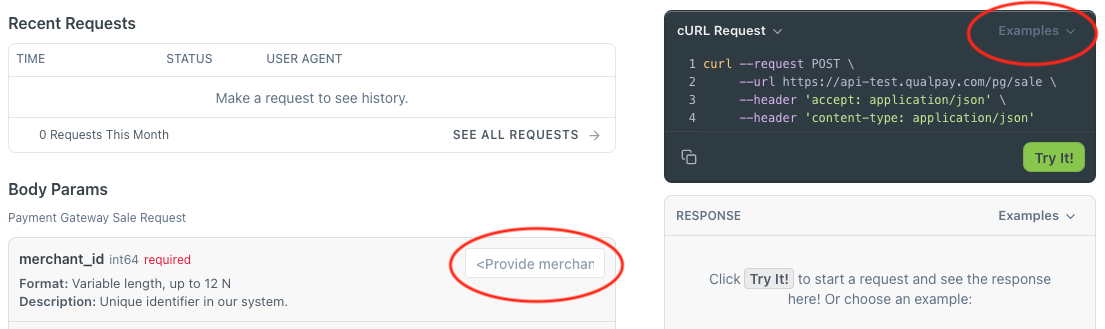
- Auto-populate - If it is available for your function, you can auto-populate the request with sample data. To do so, click the 'Examples' drop-down menu in the box of sample code, then select an available example. Fill in any parameter fields that require authenticating information, such as
merchant_idorvendor_id.
Example: Sale RequestClick 'Examples' and then select your desired request example. Put your merchant ID in the
merchant_idfield.
4. Input credentials
Input your testing credentials as follows (see Prerequisites to get your credentials):
- If you are a merchant, enter your API security key in the
passwordfield. - If you are a vendor, enter your vendor account's API security key in the
passwordfield.

5. Try It!
Select 'Try It!' in the box of sample request code.
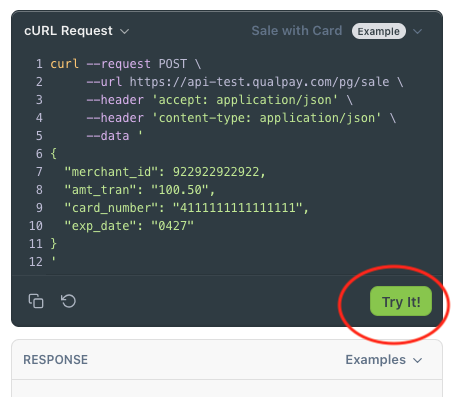
The test response will appear in the 'RESPONSE' box, below the sample request code.